Starflight Stages
A rhythm game played on idol live music videos
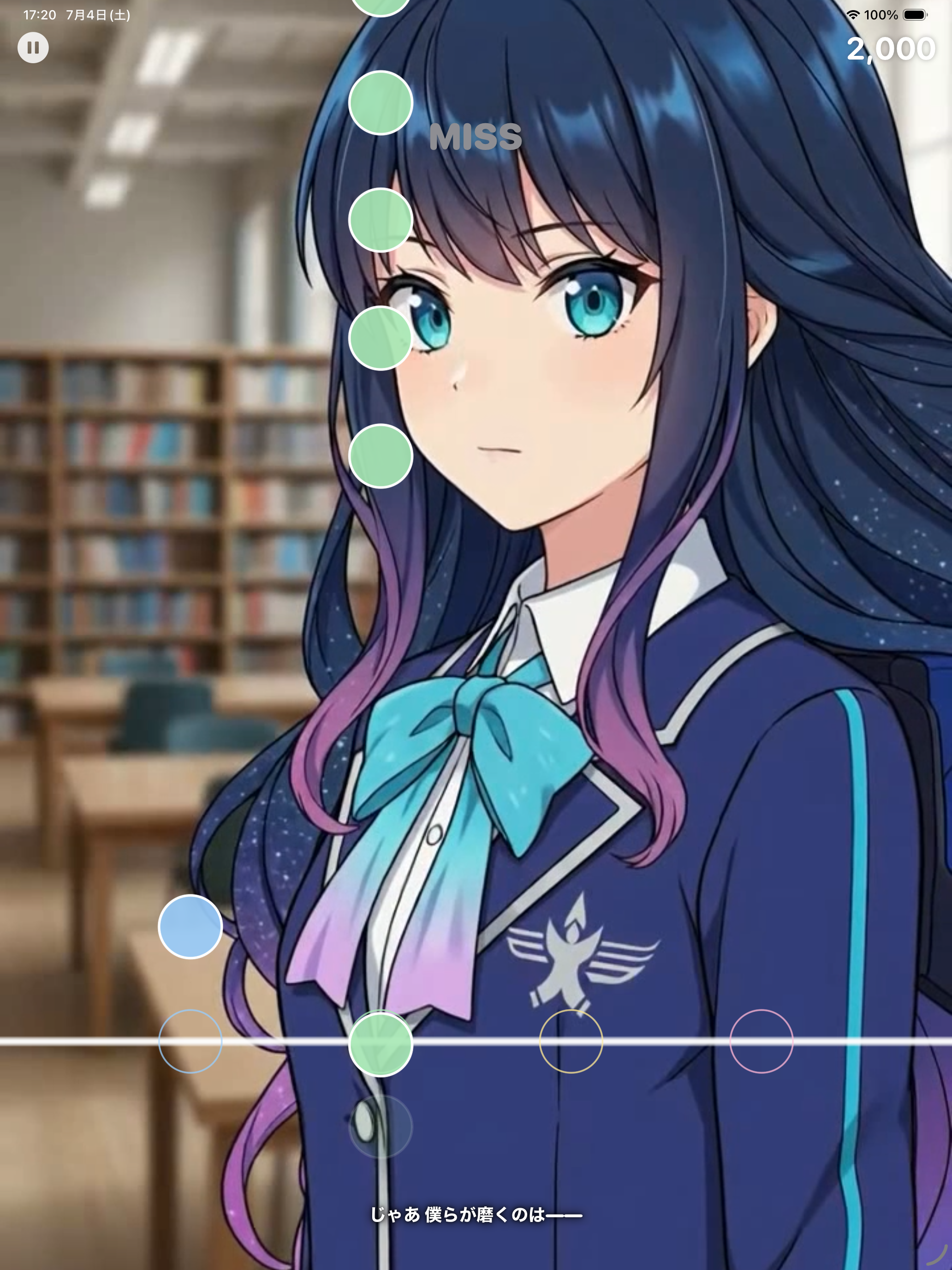
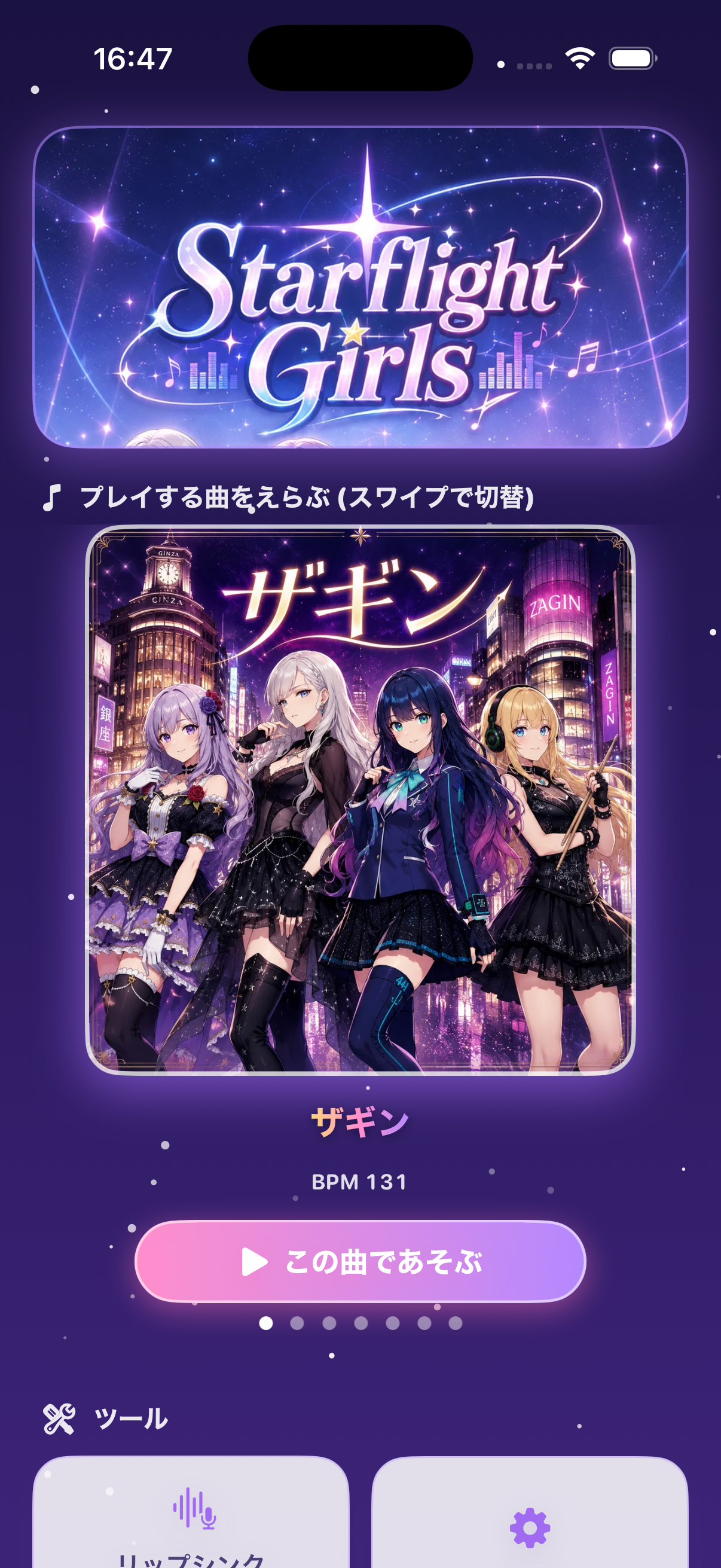
Starflight Stages is a portrait rhythm game set on live music video stages featuring Starflight Girls. Tap notes in time with the music, build score and combos, and complete each stage performance.
A Rhythm Game Connected to Live MVs
Each song plays on an MV stage where Starflight Girls members perform with the music. Core features are available offline, and all songs can be played without in-app purchases.
How to Play
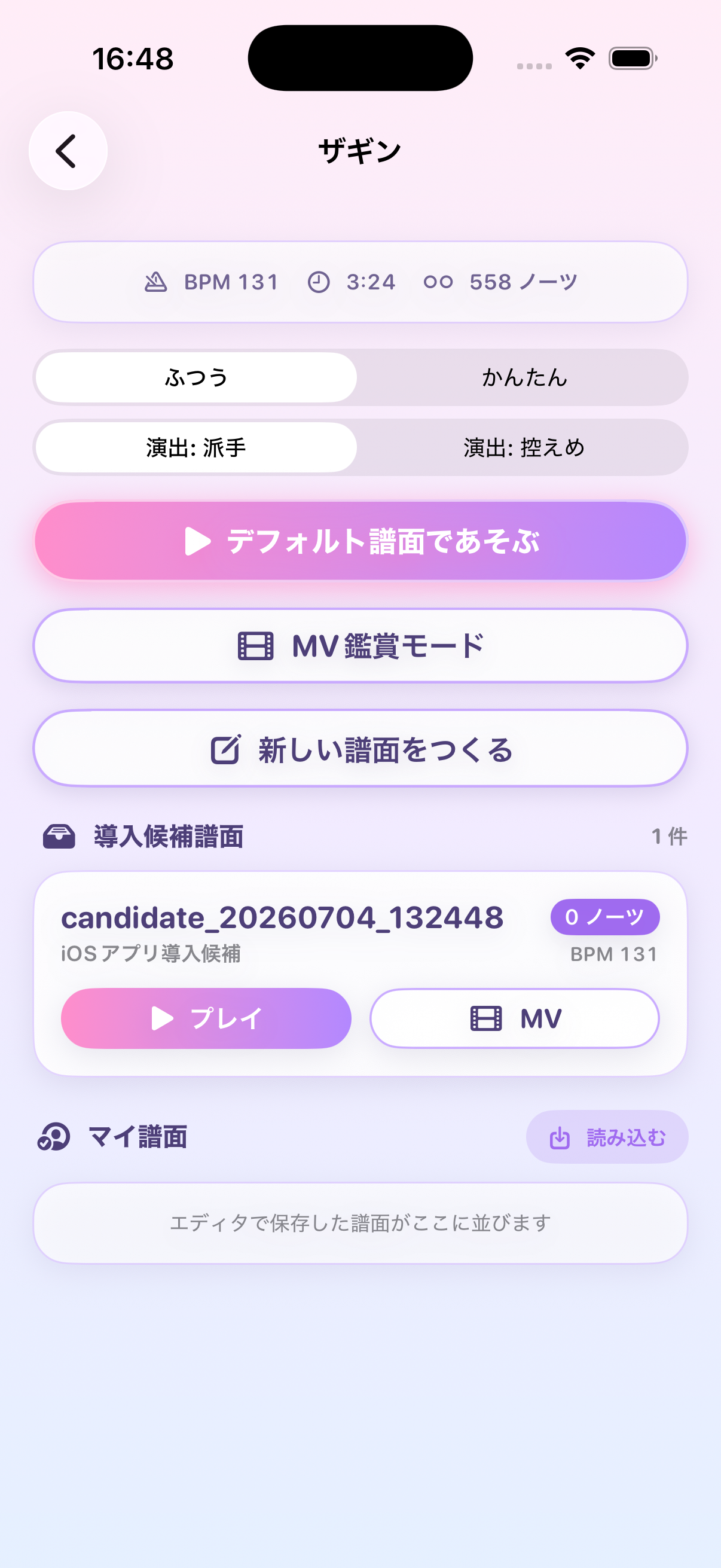
Choose a song from the song carousel.
Tap falling notes in time with the rhythm.
If the tap timing feels offset, adjust the timing offset in Settings.
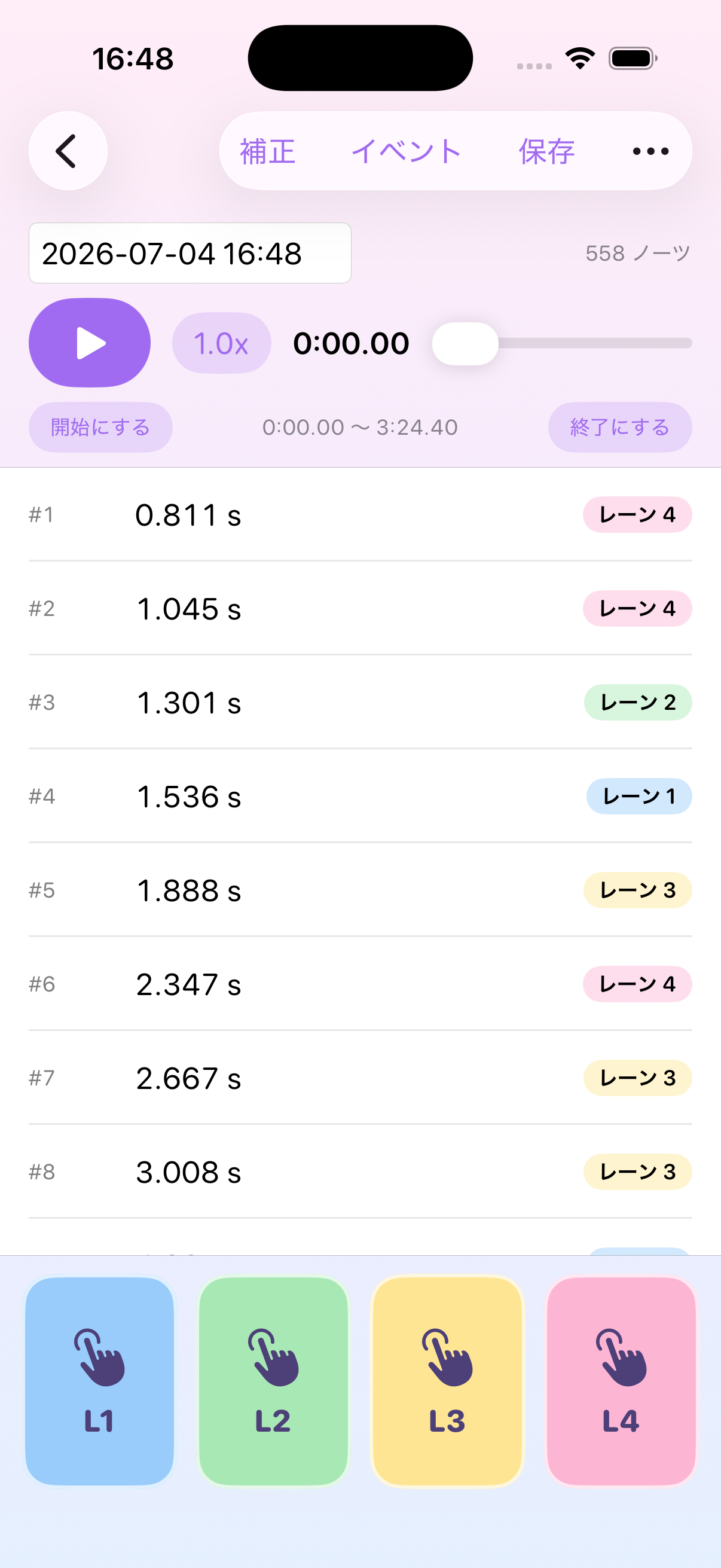
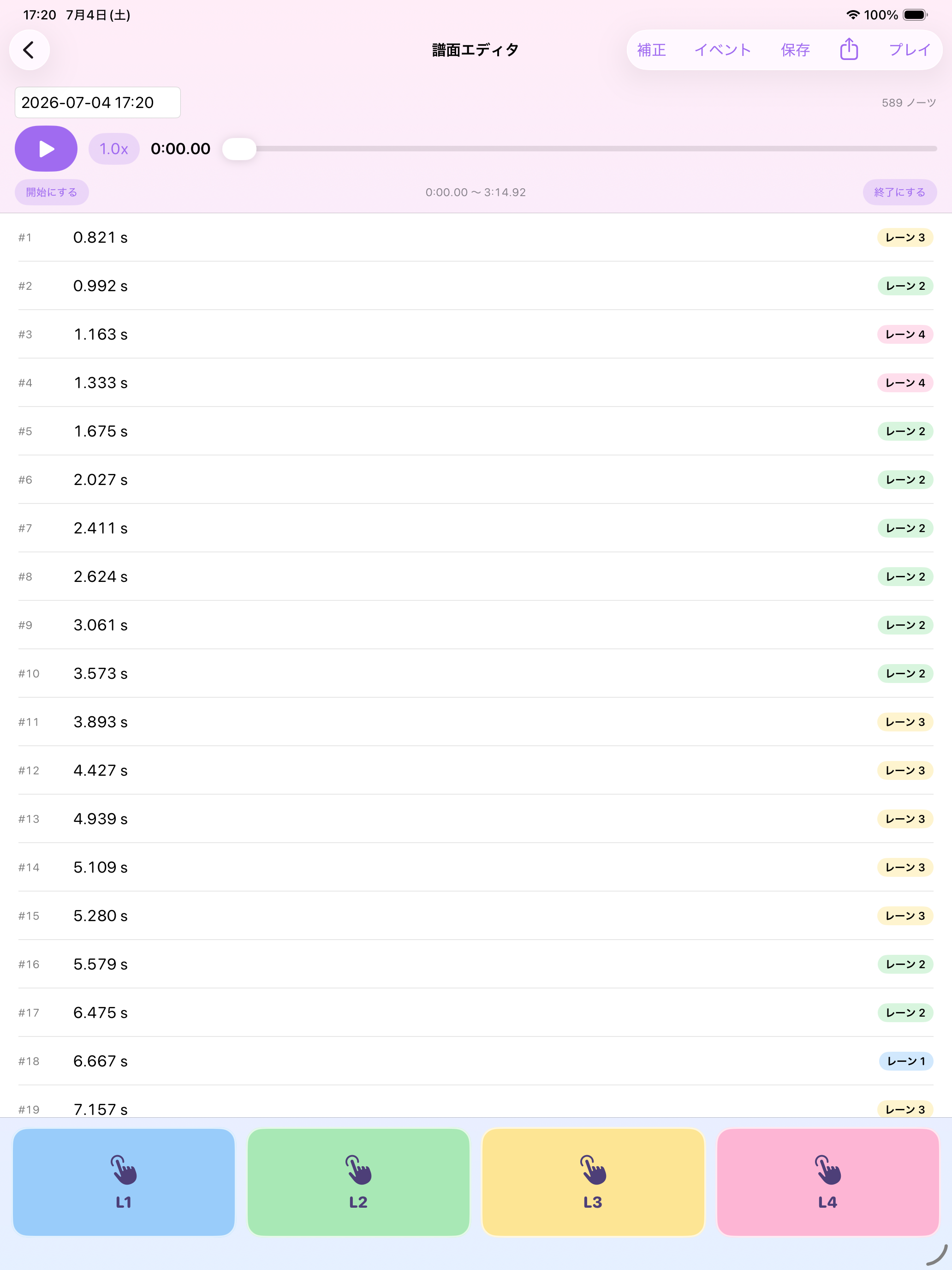
Charts created in the editor are saved on your device and can be shared as JSON files when needed.
Support
Thank you for using Starflight Stages. For bug reports, questions, or support requests, please contact us at the email address below.
- App name: Starflight Stages
- App version
- iOS version
- Device model
- Screen where the issue occurred
- Description of the issue
- Steps to reproduce the issue
Frequently Asked Questions
Please check your device volume, Silent mode, Focus settings, Bluetooth output destination, and whether tap sound effects are enabled in the app settings.
Open the app settings and adjust the timing offset. Changing it little by little in the early or late direction may improve the timing.
Charts saved in the in-app editor are stored locally as app data on your device. They are not sent to external servers.
You can export a chart as a JSON file from the in-app editor. Chart data is shared only when you explicitly use the share feature and choose a destination.
Deleting the app also removes settings and user-made chart data stored on your device. Export any charts you need before deleting the app.